![CultureAI_MASTER_RGB-2.svg]](https://success.culture.ai/hubfs/CultureAI_MASTER_RGB-2.svg)
Overview:
Phishing reports from the built-in Outlook reporting button can be forwarded to CultureAI for triage. The steps on how to complete this are detailed below:
Step1: Contact Success@culture.ai to have your unique mailbox setup for email forwarding
Step 2. Create a shared mailbox
Shared Mailboxes do not use or require a license.
- In Exchange Admin centre Select Mailboxes under the Recipients section
- Click the Add a shared mailbox button
- In the Shared Mailbox fields add the following
-
Display Name : ReportPhishing
-
Email address : ReportPhishing
-
@ : Use the Select Domain drop down to select your domain.
Step 3. Hide the shared mailbox from the Global Address List (GAL)
Hiding the address from the GAL prevents this address from displaying in the GAL for employees.
-
Select the Share Mailbox that was created in Step 2
-
Click the Hide Mailbox or Manage Hide from GAL button
-
Toggle the option from Off to On
-
Select Save
Step 4. Set up Forwarding on the Shared Mailbox to the email provided by CultureAI support
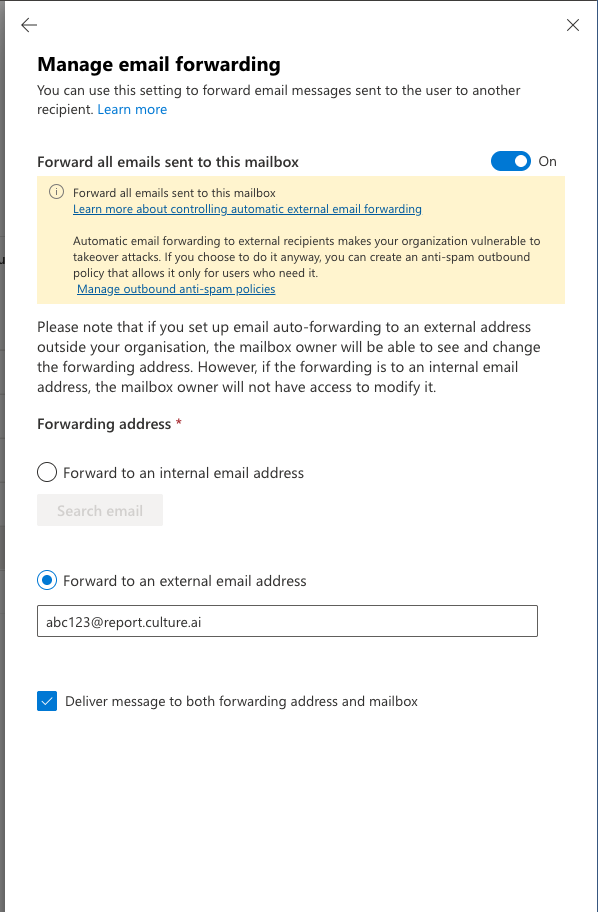
- Click on the Shared Mailbox you created to bring up a Settings Menu
- Select Email Forwarding
4. In the "Forward to an external email address" section enter the adress provided by CultureAI support
5. If you want to keep a copy of the email that is sent to our reporting mailbox make sure to check the box next to "Deliver Messages to both forwarding address and mailbox"
6. Click Save
Step 5. Forward all reported emails ot your new shared mailbox
Sign in to Microsoft 365 Defender portal
1. Scroll down on the left column and expand System > Settings and select Email & Collaboration
2. Select User Reported Settings 
3. Select the On/Off button to turn the feature on. If enabled by default, check the box to Monitor Reported messages in Outlook.
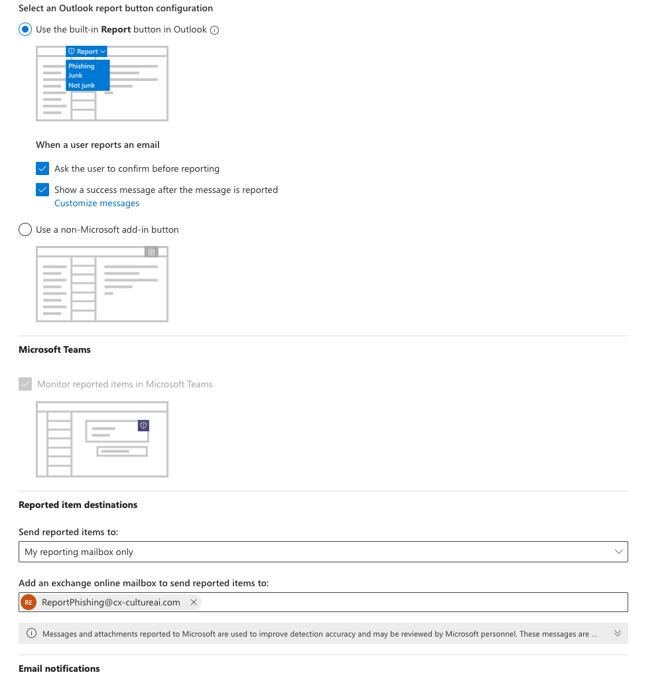
4. Select the Use Built-In "Report button option".
5. Under "Send reported messages to": use the drop-down menu to select My Reporting Mailbox Only.
6. In the email address field put in the shared mailbox email address that was created earlier (ReportPhishing@yourdomain.com
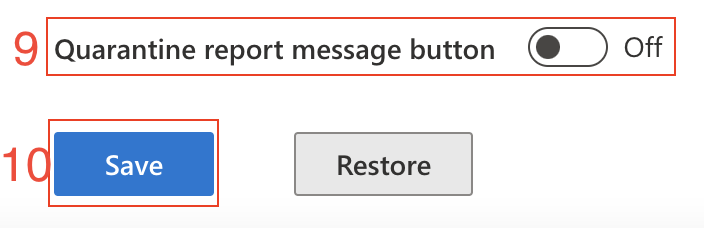
9. Scroll down and Toggle OFF the quarantine report message button if listed.
10. Select Save