![CultureAI_MASTER_RGB-2.svg]](https://success.culture.ai/hubfs/CultureAI_MASTER_RGB-2.svg)
How to enable the Edge extension with CultureAI
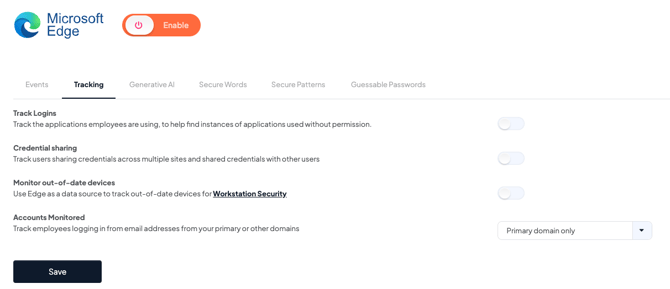
- Our Edge extension allows you to track and monitor your employees security behaviour while using Edge.
- Our browser extension looks for corporate email login attempts using emails and passwords to understand what software applications your people are using, and can then utilise the security notification tools to course correct any potentially risky behaviours real time via email/slack/teams/meta workplace.
In this guide we'll go over how to install the extension directly from your CultureAI dashboard on macOS devices via MDM tools such as Intune, Jamf or Kandji.
Good to know
- The extension only tracks corporate emails. It would track joebloggs@companyname.com, but, it would not track joebloggs@hotmail.com
Permissions & Requirements
To setup the extension you will need the following permissions:
- Platform user or above access (e.g. access to login to https://platform.culture.ai)
- Administrative access or equivalent in your chosen deployment solution or MDM (e.g. Google Workplace / Intune / Active Directory / Jamf) where you are rolling out the extension automatically to end-users.
Deploying via macOS Custom Profile (.mobileconfig)
The custom profile created during this step can be deployed via multiple MDM solutions such as Intune, Jamf or Kandji.
Enabling the extension
- Log in to the CultureAI admin dashboard
- Navigate to Settings > Telemetry and click on the 'Web Browsers' tab
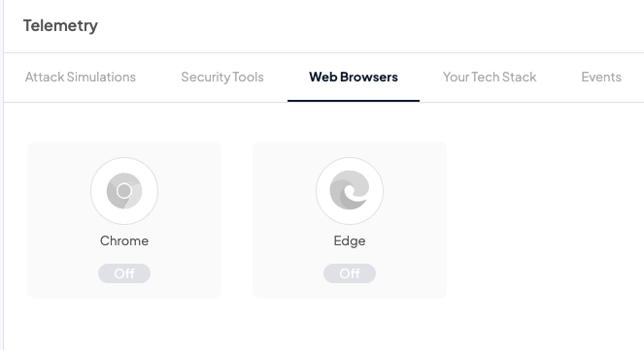
- Click the 'Edge' integration
-
Click on the 'Enable' button. A new window will pop up
- Select Group Policy and select next until step 2 where you can see Extension ID & the URL
-
Copy the Extension ID & the URL, save this somewhere as you will need it later
- Click 'Next'
-
Click 'Confirm Extension install'
Option 1: Deploy only the CAI Extension
This option is to be used if you don’t currently deploy any other Edge extensions via your MDM. Below is the contents of our .mobileconfig profile which will install the CAI Edge extension, it will:
- Install the CultureAI Edge Security Extension using our Update URL
- Add the extension to the forced install list
- Override the update URL to the update URL we provide.
Copy the below → open a text editor such as notepad or VS Code → Paste it in and save as ProfileName.mobileconfig e.g. CAIExtension.mobileconfig
<?xml version="1.0" encoding="UTF-8"?>
<!DOCTYPE plist PUBLIC "-//Apple//DTD PLIST 1.0//EN" "http://www.apple.com/DTDs/PropertyList-1.0.dtd">
<plist version="1.0">
<dict>
    <key>PayloadContent</key>
    <array>
        <dict>
            <key>PayloadType</key>
            <string>com.microsoft.Edge</string>
            <key>PayloadVersion</key>
            <integer>1</integer>
            <key>PayloadIdentifier</key>
            <string>cultureai.edge.extension</string>
            <key>PayloadUUID</key>
            <string>AFCD84A8-BE36-4720-88D5-73BD1D171FEC</string>
            <key>PayloadDisplayName</key>
            <string>CultureAI HRM - Edge Extension</string>
            <key>PayloadDescription</key>
            <string>Installs the CultureAI HRM Edge extension silently and forces a custom update URL.</string>
            <key>ExtensionInstallForcelist</key>
            <array>
                <string>EXTENSION_ID;UPDATE_URL</string>
            </array>
            <key>ExtensionSettings</key>
            <dict>
                <key>EXTENSION_ID</key>
                    <dict>
                        <key>installation_mode</key>
                        <string>force_installed</string>
                        <key>override_update_url</key>
                        <true/>
                        <key>update_url</key>
                        <string>UPDATE_URL</string>
                    </dict>
            </dict>
        </dict>
    </array>

    <key>PayloadType</key>
    <string>Configuration</string>
    <key>PayloadVersion</key>
    <integer>1</integer>
    <key>PayloadIdentifier</key>
    <string>cultureai.edge.extension</string>
    <key>PayloadUUID</key>
    <string>73BE6C05-F341-4404-850F-E175FE886C44</string>
    <key>PayloadDisplayName</key>
    <string>CultureAI HRM - Edge Extension</string>
    <key>PayloadDescription</key>
    <string>Installs the CultureAI HRM Edge extension silently and forces a custom update URL.</string>
    <key>PayloadScope</key>
    <string>System</string>
</dict>
</plist>
Option 2: Add the CAI Extension to an existing extensions configuration
It may be the case that you already install other Edge extensions on your macOS devices via a .mobileconfig profile. In this case you can add the CultureAI extension to your existing deployment.
It’s likely you already utilise the ExtensionInstallForceList keys, you’ll just need to add the CAI Extension ID and URL, separated by a semi-colon like below:
<key>ExtensionInstallForcelist</key>
			<array>
				<string>ogkdhibldgmpgajkhddgpbophcjilljg;<YOUR_UPDATE_URL></string>
			</array>
You may not already use the ExtensionSettings Schema to configure your Edge extensions, if not you’ll need to add the below to your mobile config:
<key>ExtensionSettings</key>
			<dict>
				<key>ogkdhibldgmpgajkhddgpbophcjilljg</key>
				<dict>
					<key>installation_mode</key>
					<string>force_installed</string>
					<key>override_update_url</key>
					<true/>
					<key>update_url</key>
					<string><YOUR_UPDATE_URL></string>
				</dict>
			</dict>
How to deploy the .mobileconfig via Intune
-
Go to intune.microsoft.com
-
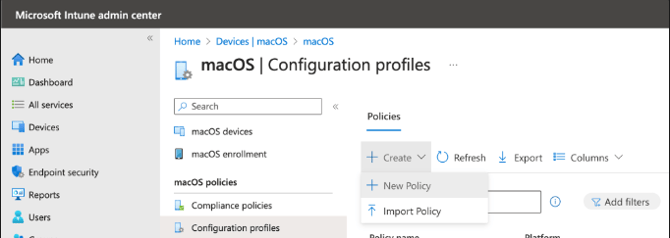
Navigate to Devices → macOS → Configuration Profiles
-
Click Create → New Policy
-
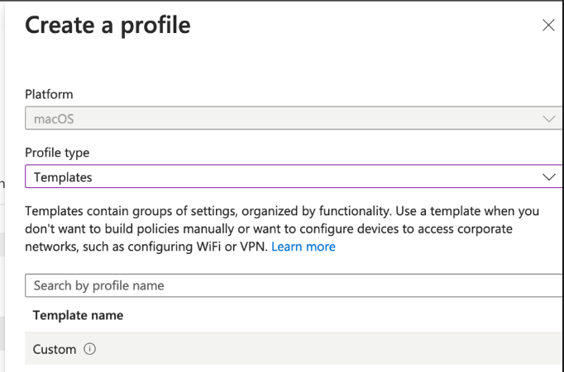
Select Templates → Custom
-
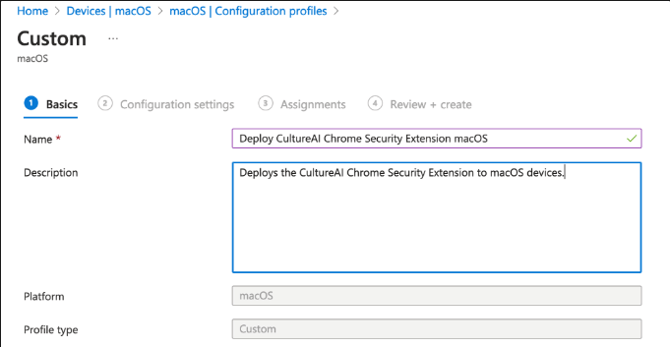
Name your Deployment, e.g. (Deploy CultureAI Edge Extension macOS) and click Next
-
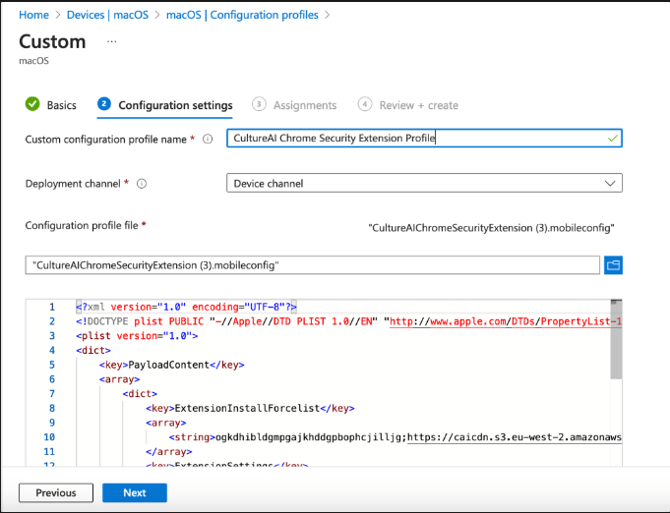
Give your profile a name and upload the .mobileconfig
-
Click Next → Assign the Profile to your target endpoints/users and Create the Profile.
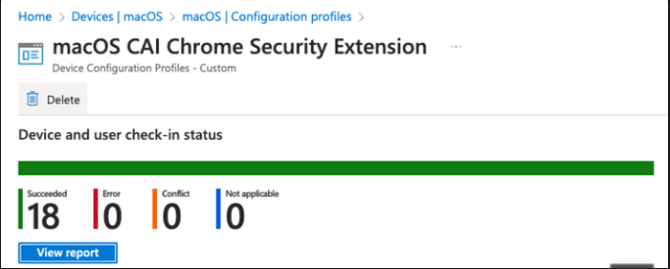
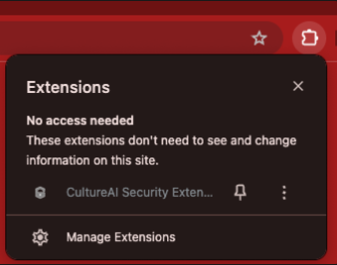
Once the configuration has been successfully applied on a machine via Intune, the extension will then appear within the user’s Edge browser.